
Your New(ish) Account Portal
Earlier this summer, a new library account management experience was introduced to our online Discover Catalog. The new Account Portal offers a much clearer and more intuitive way to manage your hold requests, track your currently checked out items, update account information, and track your interests.
To start, visit our Discover Catalog at https://discover.orionlibrary.org/.
Select Log In from the upper right corner of the page.
Log in with your library card number and Passcode (sometimes referred to as your PIN).
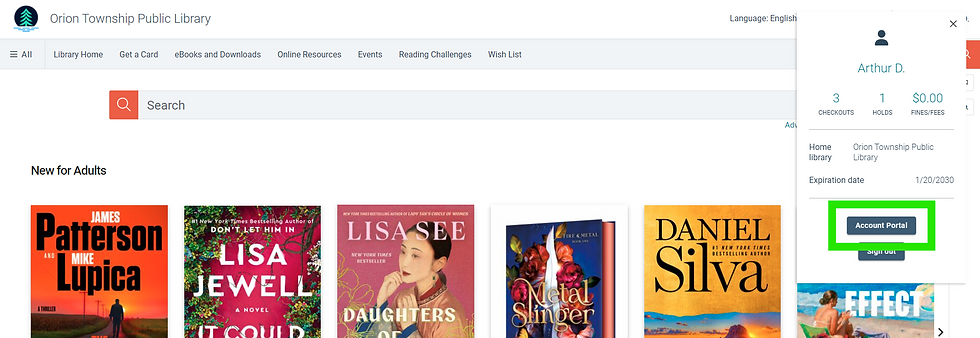
The Log In button will now display your name or nickname. Select it again, then select Account Portal.
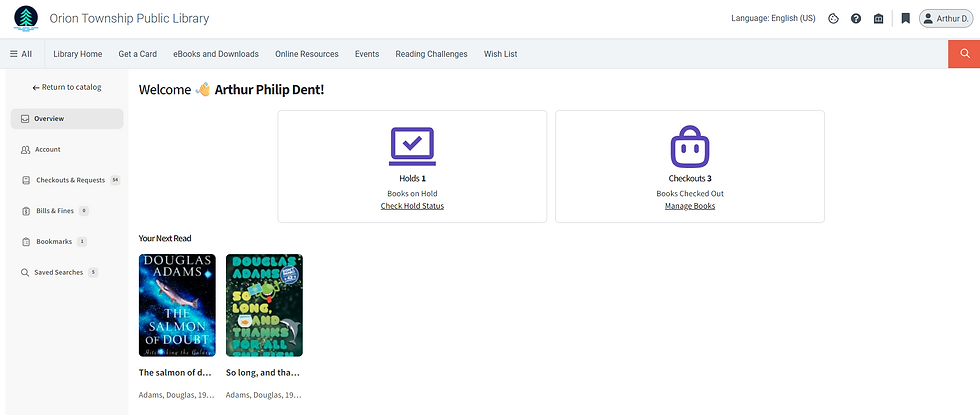
You'll be presented with a new full-screen Overview page with a welcome message, quick links to your current Holds and Checkouts, and a Your Next Read title showcase. If you've previously bookmarked titles in the catalog, this showcase will feature any of these titles which are currently available. If you have no bookmarked titles, or no bookmarked titles are currently available, you'll see a showcase featuring titles recently added to our collection.
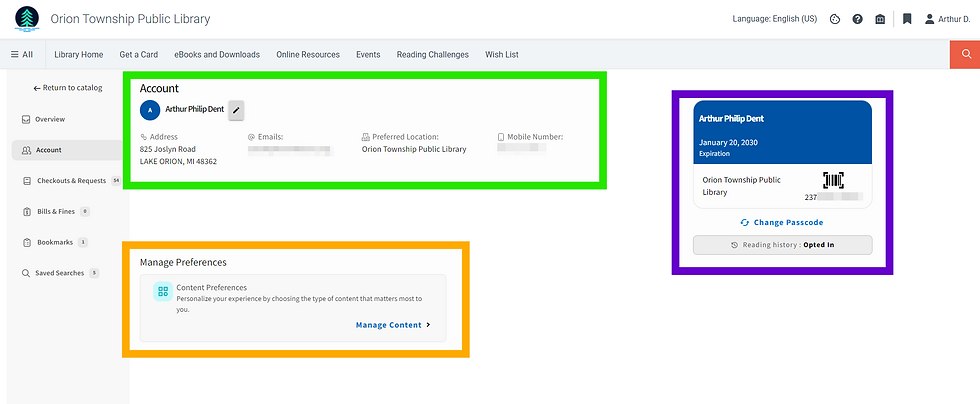
Using the links in the left sidebar, you can navigate through various account settings and features, starting with Account. From here, you can:
Verify your personal information is current, and update your email, phone number(s), preferred hold pickup location, or notification preference by selecting the pencil icon next to your name. [Green]
View your account expiration date and library card number, change your passcode, and opt-in / opt-out of saving your reading history. [Purple]
Manage your default search filters. [Orange]
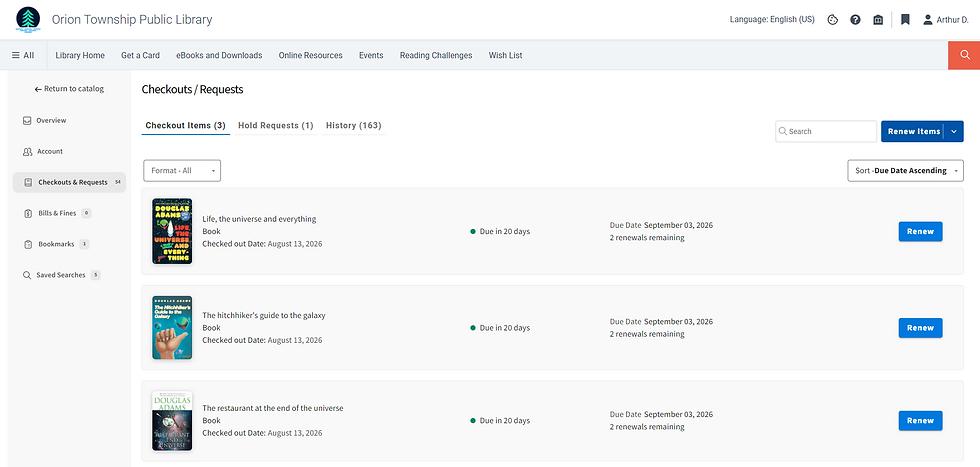
Next up in the sidebar is Checkouts & Requests. (Ignore the count. It's a bug.)
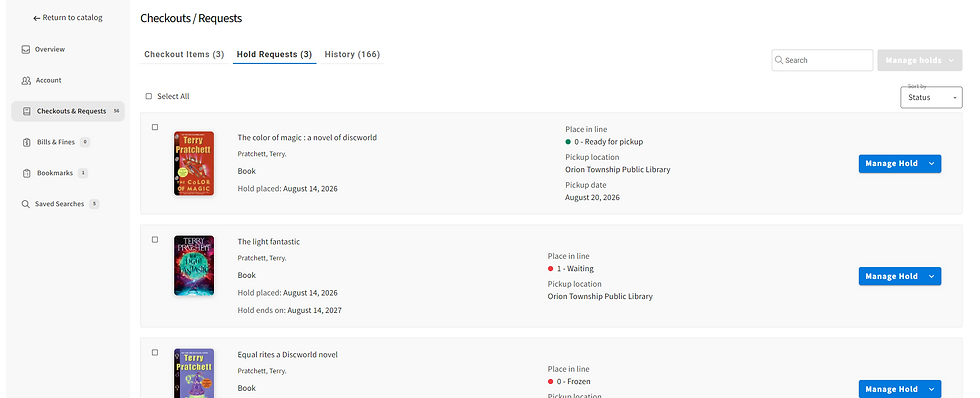
View all items currently checked out, their due dates, and how many renewals are remaining in the Checkout Items tab.
Under the Hold Requests tab, you can see if items are ready for pickup, your place in the hold queue, freeze, unfreeze or cancel holds, or change your pickup location provided the item is not already ready for pickup.
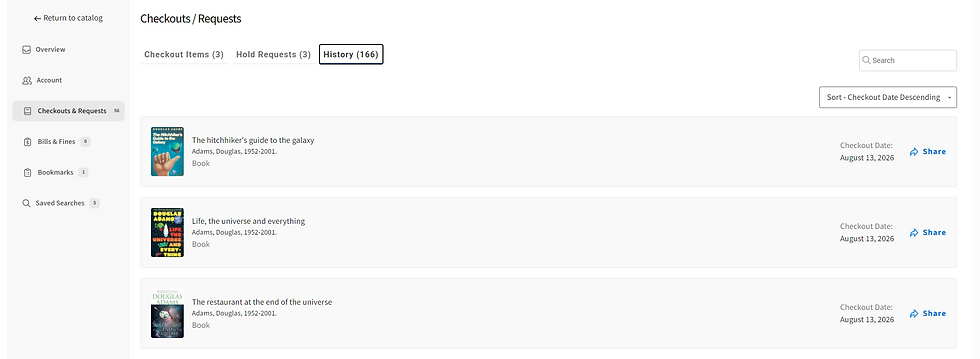
If you've opted to save your Reading History, you'll see a list of items you've previously checked out and their original checkout date.
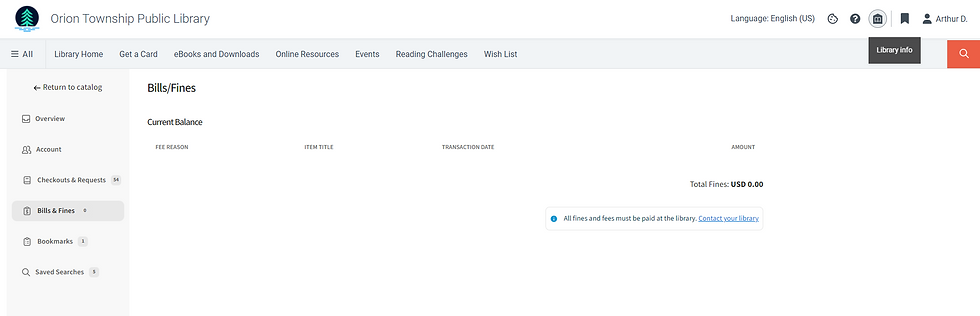
This is followed by Bills & Fees where you'll find why a fee was assessed, on which item(s), when the fee was applied to your account, and the total amount owed. Please note that fees must be paid in person at the library.
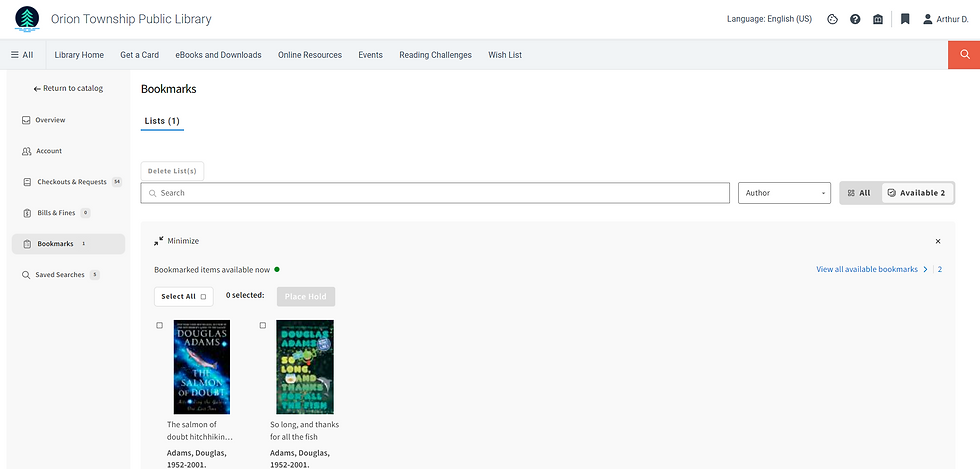
Bookmarks is where you'll find your previously curated lists. The default view setting limits items shown to those that are currently available but can be toggled to show all items.
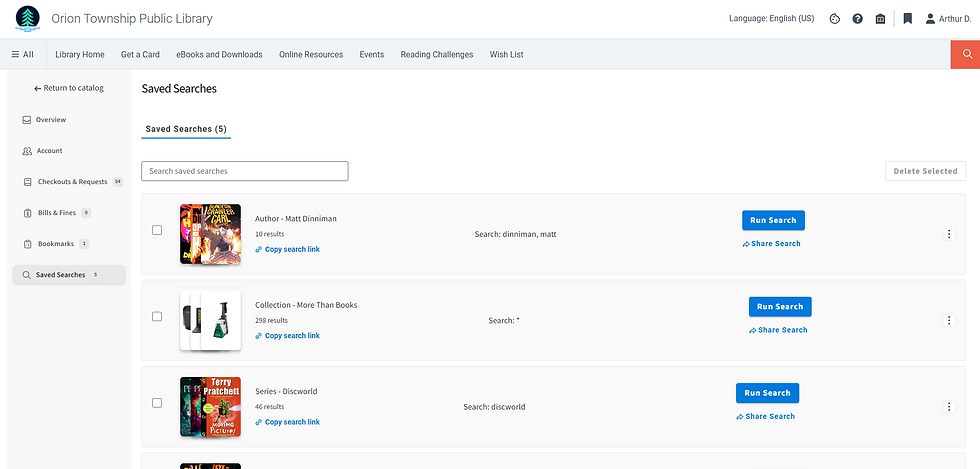
And finally, we have Saved Searches. Did you know that you can search for a title, series, author, concept, or keyword, filter the results to your liking (only show print books added in the last month that are currently on the shelf, for example), and save that search to reuse again later? And that if new items have been added since your last search, they'll show up in your new search? Cool, right?
This article was written by Steve Saunders, Head of Information Technology.