
Borrowing from Other Libraries with Libby Just Got Easier
The Libby Team recently announced several changes to the Libby app with the goal of making it easier for patrons to access the collections of Partnering Libraries. These changes include a list of all partner libraries, easier card management, recommending the partner with available copies or the shortest wait times, and one-click deep searching.
For the purposes of this article, let's assume you are already a Libby user and are already accessing our collection through the Midwest Collaborative for Library Services (MCLS). If you are new to Libby and would like help getting started, contact our Adult Services Desk at (248) 693-3001 or schedule a One-on-One Tech Help appointment.
To start, tap the Libby / Menu icon in the center of the bottom Navigation bar. You'll now see two sections, Your Libraries and Partner Libraries. The Partner Libraries list will automatically populate with any Libby group within Michigan that participates in collection sharing. No more individually searching for and manually adding parters!
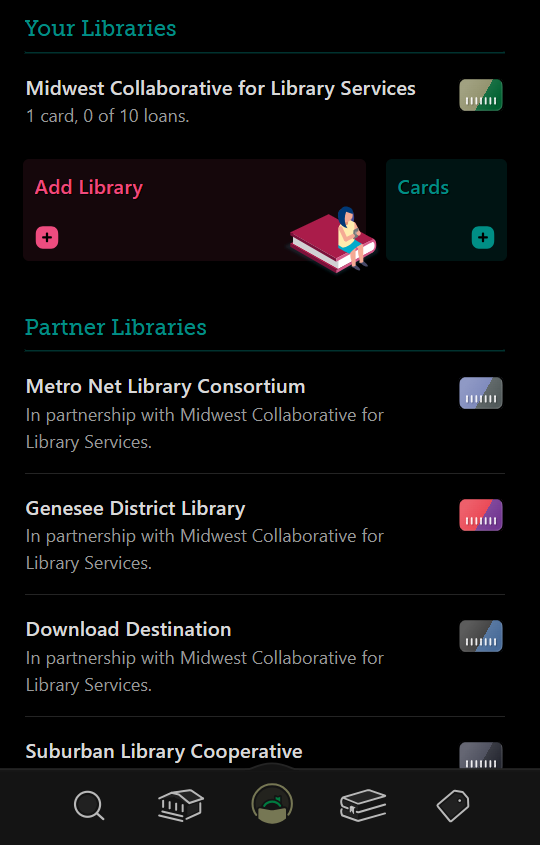
Note: If you've previously taken advantage of partner borrowing, you will see partner libraries listed under both sections.
In order to take advantage of Partner Libraries, you must enable your library card with each partner, but this process has been greatly simplified:
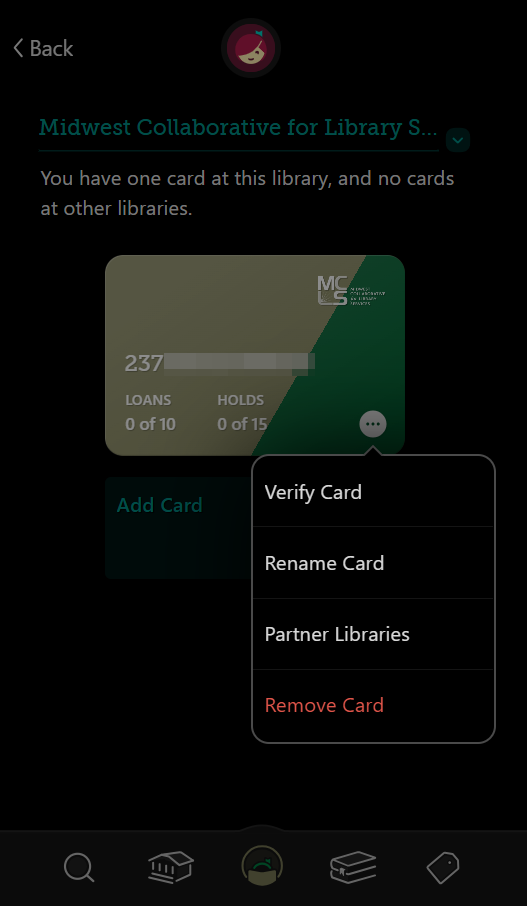
Tap the library card icon (not the library name) of your home library in the Your Libraries list.
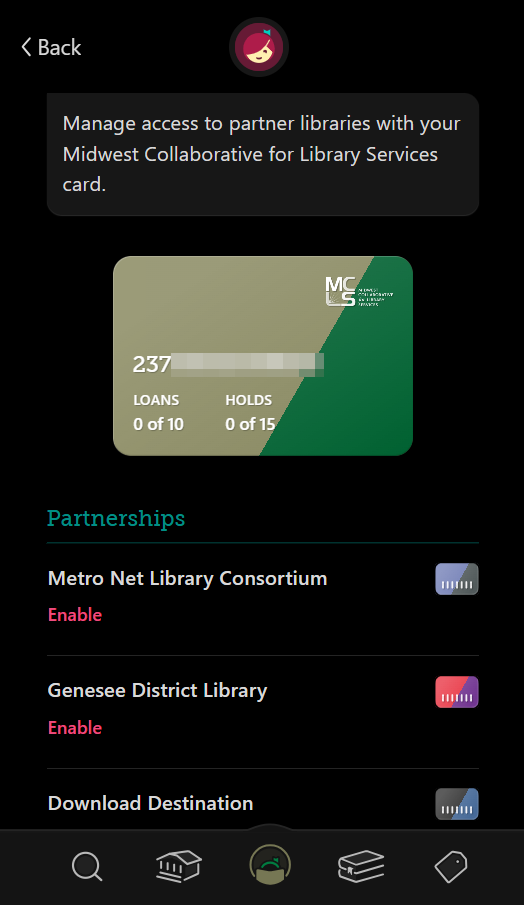
Tap the Actions icon in the lower right corner of your library card, then tap Partner Libraries.
Tap Enable for each Partner Library you'd like to add. No more re-entering your library card number and PIN for each Partner Library!
Note: Different partners have different limits for the number of checkouts, number of holds, and the available lending period. If the limits for a partner do not meet your needs, feel free to leave it disabled or remove it from your Partnerships list if it has already been enabled.
You are now ready to search or browse collections using the Search icon or Library icon located in the bottom Navigation bar. On both the Search and Browse pages, the currently selected library will appear in the upper right corner. To change partners, tap the logo and select a different one.
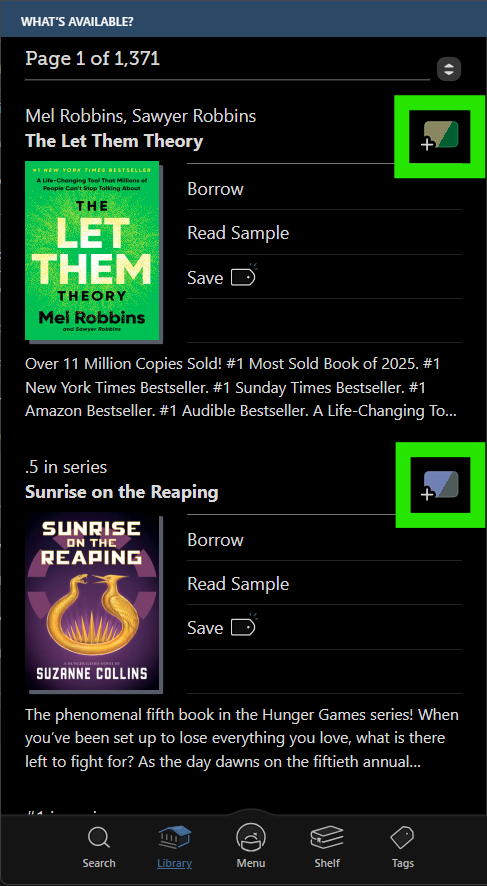
As you browse you may notice different colored library card icons next to each item in your results. These represent either a partner with an available copy or the partner with the earliest available copy. Tapping the Card icon will give you more information about various availabilities and wait times.
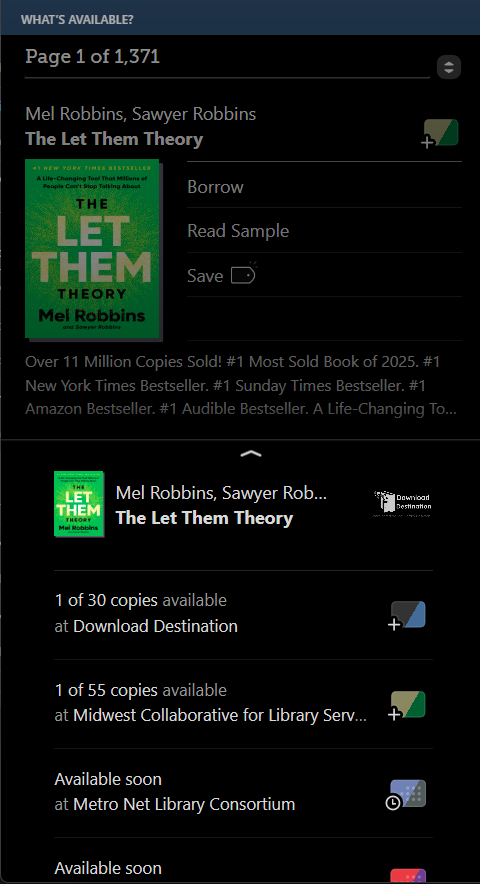
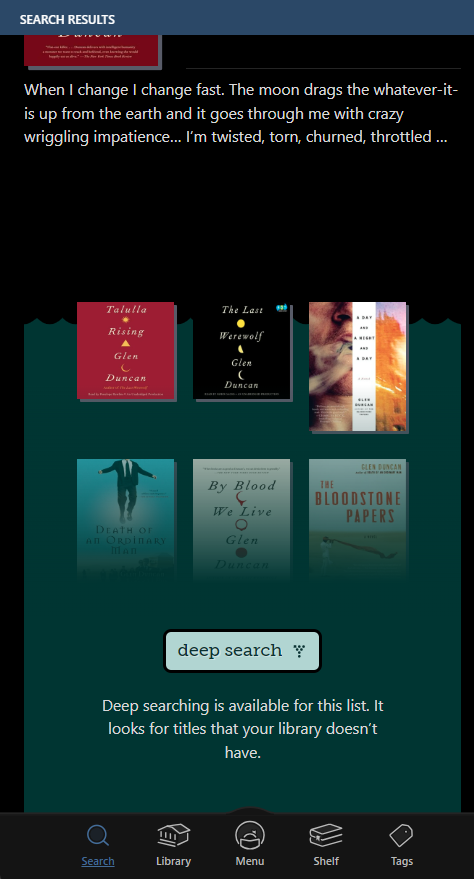
Something to keep in mind - you'll only see Partner Library availability if the title is owned by the library collection you are currently searching. For example: If you search MCLS for a title that it does not own but is owned by Download Destination, you will not see that title in your search results. To get around this limitation, swipe all the way down to the bottom of your results to find Deep Search. This will search all titles that are potentially available through Libby.
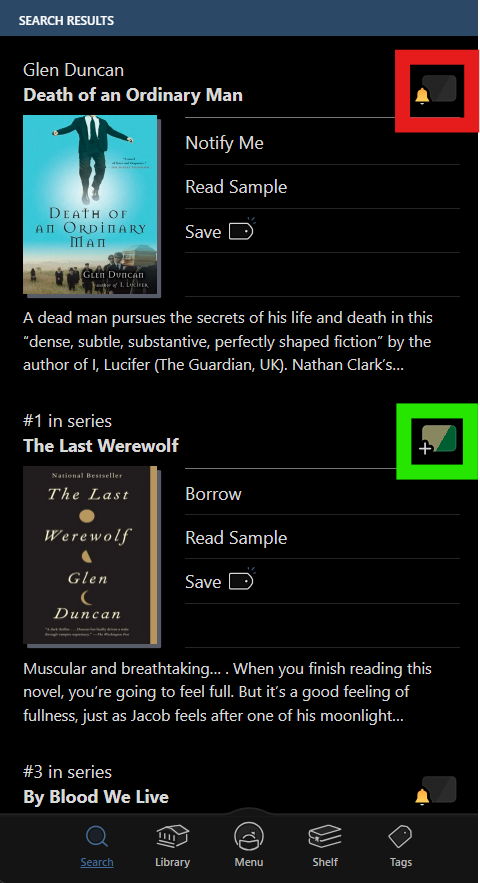
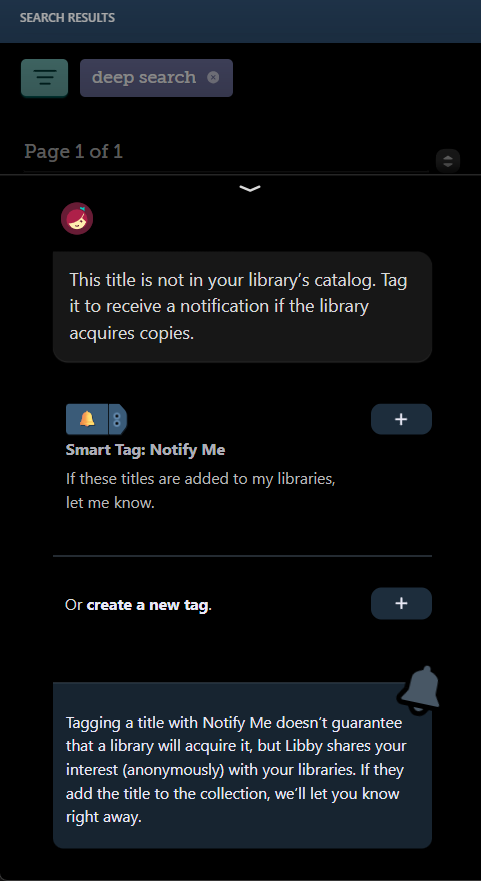
If a title is owned by a Partner Library, you will see a Card icon next to the title. If the title is not currently owned by a Partner Library, you will see a Notification Bell icon. Tapping the Notification Bell will allow you to submit an anonymous request to your libraries for purchase consideration, as well as sign you up to be notified if the title is added to one of the Partner Library collections.
Thus concludes this overview of the recent changes introduced to Libby and its streamlined Partner Libraries features. For help navigating these changes, or anything related to our Digital Collections, please contact us at (248) 693-3001 or schedule a One-on-One Tech Help appointment.
This article was written by Steve Saunders, Head of Information Technology.